5 min read
Serve Different Homepages with Nuxt Named Views
Use named views in Nuxt 4.5 to show a public homepage or a dashboard at the same URL, depending on a demo authentication cookie.
Ask my AI assistant
Michael Hoffmann
@mokkapps
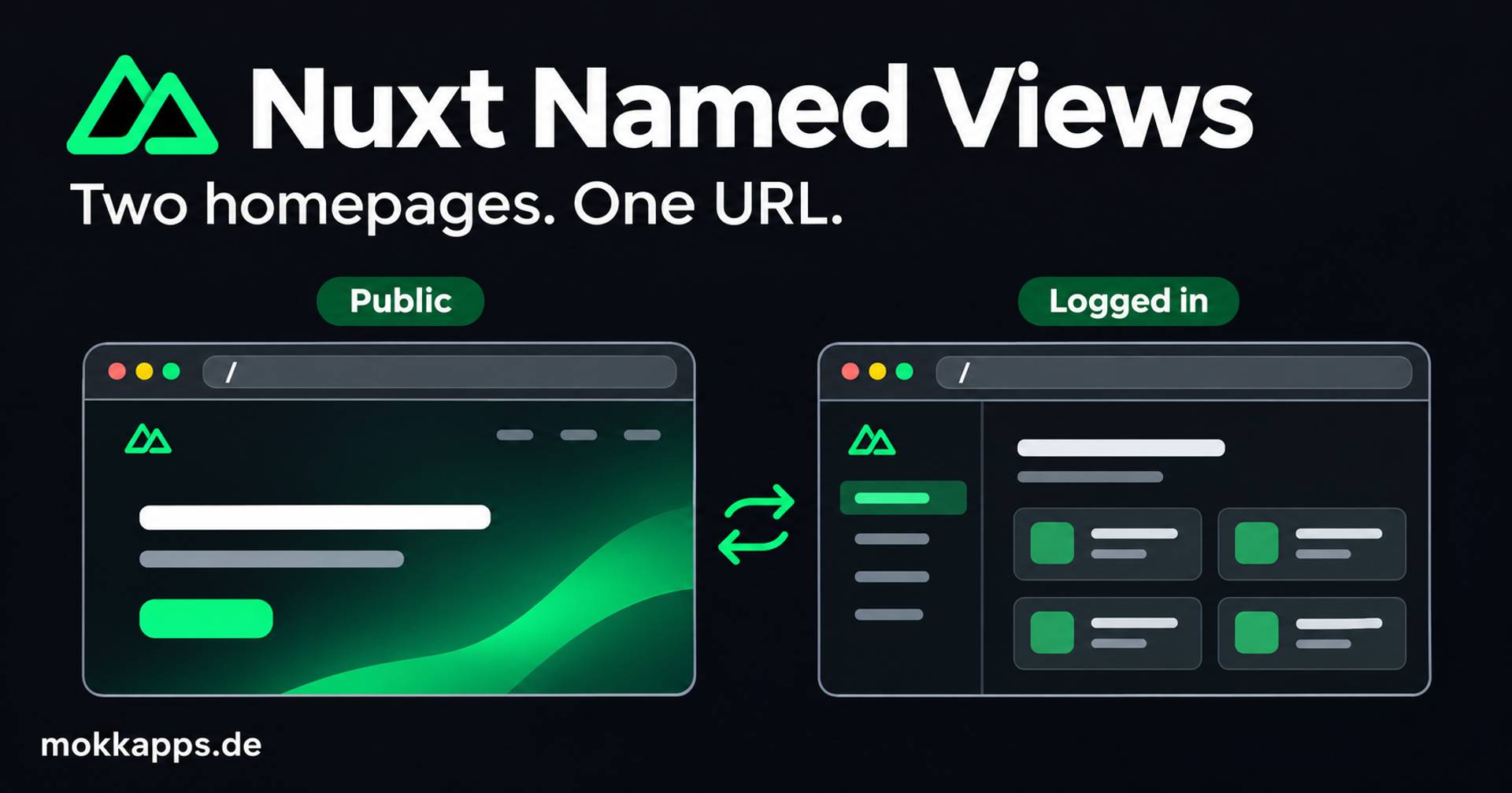
Some apps have business or SEO requirements that both the logged-out and logged-in homepage must be served at /. For example, when migrating a legacy system to Nuxt, you may need to preserve its existing URLs and behavior. Visitors who are logged out should see an introduction to the product, while logged-in users should see their workspace at the same route.
This shared-route setup is only needed when those requirements prevent you from using separate URLs. If you can choose your routes freely, you can keep the public homepage at / and put the workspace at /dashboard.
In this article, I want to show you how to build this with named views in Nuxt 4.5. We will use a demo authentication cookie to select which index page to render.
How Named Views Work
A route usually renders one page through <NuxtPage />. Named views let that route provide additional page components. Each component belongs to an outlet identified by its name.
Nuxt 4.5 adds a file naming convention for these views: put the view name after an @ in the page filename. For our homepage, we will use index.vue and index@authenticated.vue.
Both files belong to /. The second file does not create an /authenticated route. It provides the component for the authenticated outlet on the index route.
Named views can render several parts of a page at once, such as the main content and a sidebar. In our example, we will render one outlet at a time, depending on the cookie.
Try the Demo
Use the login button below to switch between the public homepage and the workspace. The preview illustrates the two states without changing this article's URL or setting a cookie on this website.
Named Views DemoDemo route: /
Interactive illustration only. No authentication cookie is set on this website.
Selected outlet: default
index.vue
Your projects, in one place
Plan your next project and keep track of your work.
Opens a new tab with the complete Nuxt app. Allow popups if it does not open.
Choose Edit and run in StackBlitz to open the complete Nuxt app in a new tab. That version uses the real page files and demo cookie shown below, so you can edit the code and test a reload. In StackBlitz, open the app preview in its own tab to test the cookie across reloads.
Create the Two Index Pages
Start with a Nuxt application running version 4.5 or later. We only need these three files:
Directory Structure
app/
├── app.vue
└── pages/
    ├── index.vue
    └── index@authenticated.vue
Let's start with the page for visitors who are logged out:
app/pages/index.vue
<template>
  <main>
    <h1>Your projects, in one place</h1>
    <p>Plan your next project and keep track of your work.</p>
    <p>Use the demo login button above to open your workspace.</p>
  </main>
</template>
Next, add the named view for logged-in users:
app/pages/index@authenticated.vue
<template>
  <main>
    <h1>Your workspace</h1>
    <p>You are viewing the logged-in homepage.</p>
    <ul>
      <li>Website redesign</li>
      <li>Customer portal</li>
    </ul>
  </main>
</template>
The project names are static demo content. We will keep the example focused on selecting a view rather than fetching account data.
Select a View with a Cookie
We can use Nuxt's useCookie composable to read and update the demo cookie. Add the selection logic and a login/logout button to app.vue:
app/app.vue
<script setup lang="ts">
const authCookie = useCookie<null | string>('demo-auth', {
  default: () => null,
  path: '/',
  sameSite: 'lax',
})

const isLoggedIn = computed(() => authCookie.value === 'logged-in')

function toggleLogin () {
  authCookie.value = isLoggedIn.value ? null : 'logged-in'
}
</script>

<template>
  <div>
    <header>
      <button
        type="button"
        @click="toggleLogin"
      >
        {{ isLoggedIn ? 'Log out of demo' : 'Log in to demo' }}
      </button>
    </header>

    <NuxtPage
      :key="isLoggedIn ? 'authenticated' : 'default'"
      :name="isLoggedIn ? 'authenticated' : 'default'"
    />
  </div>
</template>
isLoggedIn is true only when the cookie contains logged-in. Without that value, the outlet uses the name default and renders index.vue. After clicking the button, it uses authenticated and renders index@authenticated.vue.
The key changes with the selected view, giving each login state a fresh NuxtPage instance. The URL stays /; we don't need a redirect to a separate dashboard route.
Setting the cookie to null removes it. The same button therefore lets us try both states without adding login and logout endpoints.
Only the default route file,
index.vue, supplies definePageMeta for this route. Metadata inside index@authenticated.vue has no effect on the route. Put shared route middleware and other route metadata in index.vue.Render the Correct View on Reload
useCookie can read the incoming cookie during server rendering. If the browser sends demo-auth=logged-in, the server can select the authenticated view for the initial response. Without it, the server selects the public view.
We don't need to wait for onMounted to read browser storage. That also means the choice is available before the first client render.
This example needs a running Nuxt server to personalize the initial HTML. A prerendered / page cannot change its HTML for each visitor's cookie. Also, don't put a personalized homepage behind a shared HTML cache that serves the same response to every visitor.
Try Both States
Start your app with its development command, for example:
pnpm dev
Open / in a browser and try the following:
- With no
demo-authcookie, check that the public homepage appears. - Click Log in to demo. The workspace should replace it while the URL stays
/. - Reload the page. The workspace should still appear because the browser sends the cookie.
- Click Log out of demo, then reload. You should see the public homepage again.
This small app only has the index route. If you add more routes, remember that an outlet with no matching named view stays empty. An app-wide authenticated outlet would therefore hide pages that only provide a default view. You can move the selection into a parent page for the relevant route subtree, or explicitly choose the default outlet on other routes.
Replace the Demo Cookie Before Production
The demo cookie is editable in the browser. Anyone can set it to
logged-in. It demonstrates view selection and must not grant access to private data.For a real app, validate the session on the server and derive the logged-in state from that result. A session cookie can be HttpOnly; client JavaScript cannot read it directly, so expose the validated user state through your authentication integration instead of reading the secret cookie in app.vue.
Your API endpoints must check the session and the user's permissions themselves. Selecting a different page component does not protect an endpoint, and private information should never be hardcoded into a page component shipped to the browser.
Conclusion
I like this approach when the public homepage and the logged-in workspace need their own page files but should share /. The cookie selects an outlet, and Nuxt's file naming convention connects that outlet to a component.
For a small homepage, a conditional component inside index.vue may be enough. Named views give us another option when we want to keep the two page implementations separate. The authentication checks still belong on the server.