3 min read
Why I Switched Back From VS Code to IntelliJ IDEA
Why I returned to IntelliJ IDEA for Nuxt development: Git integration, code navigation, fewer plugins and database tools.
Ask my AI assistant
Michael Hoffmann
@mokkapps
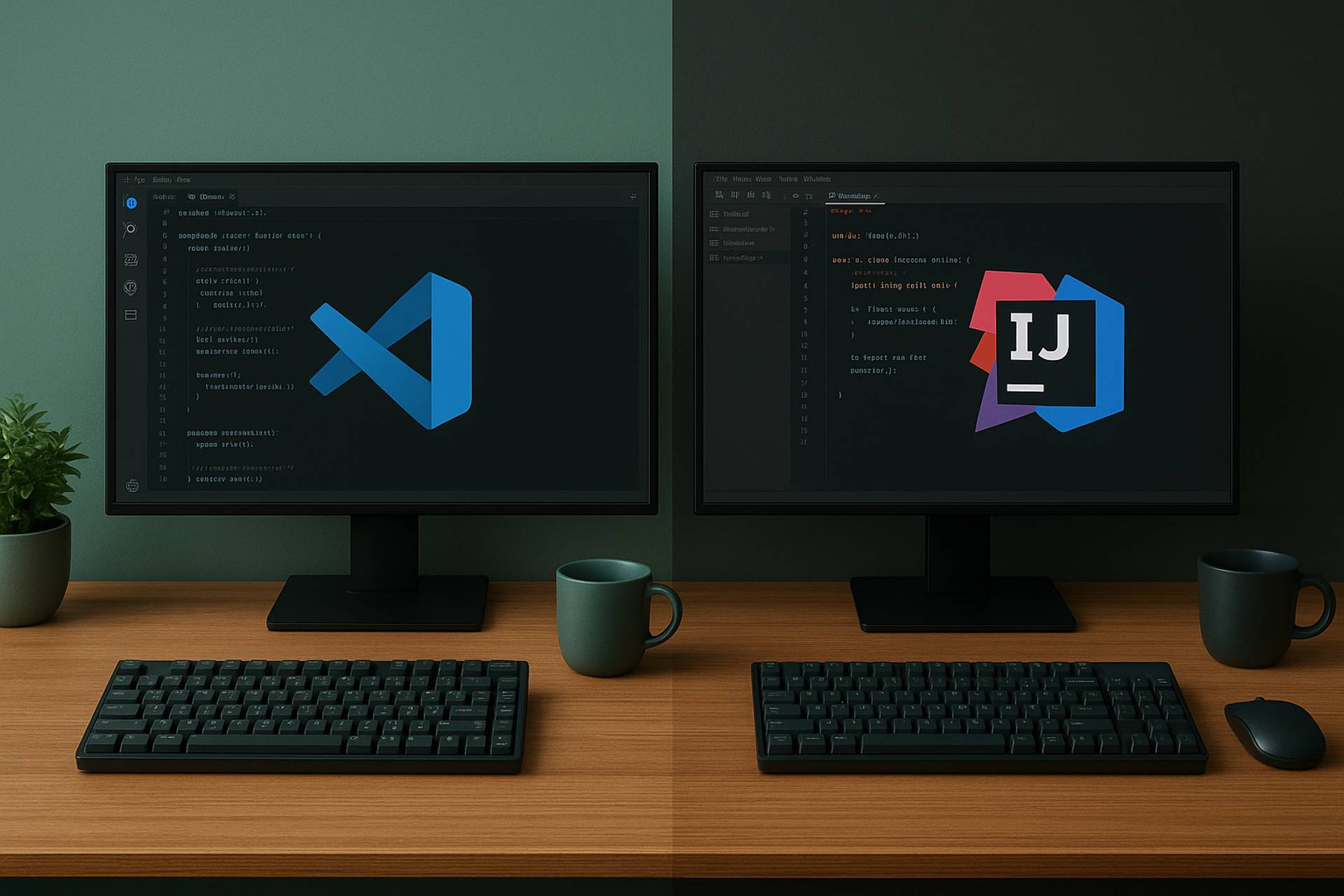
I used Visual Studio Code while working with Nuxt 3 in its early days. It was quick to set up, and I could add the extensions I needed for Vue and Nuxt development. Recently, I switched back to IntelliJ IDEA.
In this article, I want to share why I switched back and which parts of IntelliJ I prefer for my daily work.
Why I Used VS Code
I liked how quickly I could open a file or a small project in VS Code. Its extensions let me adapt the editor to the project, and its remote development tools were useful when working on another machine.
Over time, my setup grew. I had extensions for formatting, linting, Git, tests and database access. Each extension had its own settings and updates. I wanted to spend less time maintaining that setup, which was one reason to return to IntelliJ.
Git Integration
Git is one of the main reasons I prefer IntelliJ. I can inspect local changes, compare branches and read a file's history in the same interface. I also use it for stashing changes, cherry-picking commits and interactive rebases.
When reviewing a feature branch, I can compare it with another branch and open the changed code directly from the diff. I rarely need a separate Git client for that work.
These operations are possible with other tools too. I prefer how IntelliJ puts them together.
Navigation and Indexing
In a Nuxt project, I regularly move between Vue components, composables, server routes and shared TypeScript code. Finding a declaration or checking where a function is used is part of that work.
I like IntelliJ's Find Usages and Search Everywhere for this. Its project index helps me navigate across files and packages without searching for a function name as plain text.
Of course, indexing also takes time. Opening a project or changing dependencies can trigger more work in the background. I accept that cost because I like the navigation once the project is indexed. I haven't measured the two editors against each other, so this is a preference based on my workflow.
Fewer Plugins to Configure
IntelliJ includes the JavaScript and TypeScript tooling, Git interface, test runners and debugging tools I need for my full-stack work. The database tools I use are part of IntelliJ IDEA Ultimate.
I still need to configure the project, but I have fewer separate extensions to maintain. I prefer having the run configurations, debugger and code navigation in the same application.
Debugging and Run Configurations
I use run configurations to save how a project starts: the command, working directory and environment variables. I can start a script again without remembering those details each time.
For debugging, I can set conditional breakpoints, inspect variables and evaluate expressions. Being able to debug a test from the test runner is useful when I need to understand why it fails.
VS Code also supports debugging and launch configurations. I find IntelliJ's interface more comfortable for switching between application code, server code and tests.
Database Tools
The integrated database tools are another reason I use IntelliJ IDEA Ultimate. I can inspect a schema, run a query and check its results without opening a separate database client.
When a bug involves stored data, I can inspect that data and return to the relevant server code in the same window. That fits the way I work on Nuxt applications with a backend and a database.
Conclusion
I'm happy with the switch back to IntelliJ. Git, navigation and database access are the parts I appreciate most. Having them together means less editor setup for me to maintain.
VS Code still works well for quick edits and smaller tasks. For my daily full-stack work, I prefer IntelliJ's integrated tools. The trade-off is using a larger IDE and paying for the Ultimate features I need.